
Werewolves Revamped
Os13b | CC 1 / 🤖-bugtime

Werewolf Bot Player HelpUse $help <command> to get information about a command.
While ingame react to messages with 📌 to pin them!
Player arguments can be names, emojis, ids, nicknames or discord tags
Arguments cant contain spaces, unless the argument is quoted "like this"$help - Provides information about commands.
$ping - Tests the bot
$temp - Converts between °C and °F.
$time - Identifies or convers timezone.
$cc - Manages CCs.
$roll - Randomizes
$loot - Opens a lootbox.
$recycle - Turns a reward into coins.
$inventory - Shows your inventory.
$market - Shows the market.
$coins - Shows your coins.
$xp - Check your XP.
$icon - Manages your role icon.
$death_message - Manages your death message.
$booster - Manages your boosters.
$stash - Hides an item.
$unstash - Unhides an item.
$nickname - Sets your nickname.
$reverseme - Reverses your nickname.
$newship - Updates your nickname.
$newhate - Updates your nickname.
$flip - Flips a coin.
$fortune - Tells your fortune.
$list_signedup - Lists signed up players.
$list_alphabetical - Alternative signed up list.
$list_alive - Lists alive players.
$list_dead - Lists dead players.
$list_substitutes - Lists substitute players.
$list_mentors - Lists mentors.
$emojis - Provides an emoji & player ID list.$signup - Signs you up for the next game.
$j - Special variant of signup command.
$spectate - Makes you a spectator.
$substitute - Makes you a substitute player.
$packs - Manages skinpacks.
$alias - Manages aliases.
$info - Returns role info (simplified).
. - Returns role info (simplified/temporary).
$details - Returns role info (detailed).
; - Returns role info (detailed/temporary).
$info_technical - Returns formalized role info.
~ - Returns formalized role info (temporary).
$card - Returns a role´s card.
$image - Returns a role´s image. You have not unlocked the $flip command.
 Syntax error. Unknown command
 tp!
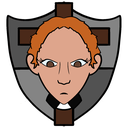 Cleric
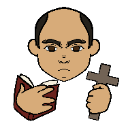 Exorcist
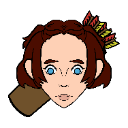 Fletcher
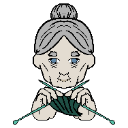 Grandma
 Herald
 Hooker
 Medium
 Royal Knight
 Stalker
Cursebearer
Stalker
Cursebearer
 Ravenkeeper
  Werewolves Revamped - OS13B
 Apothecary
 Assassin
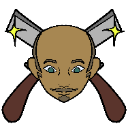 Barber
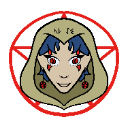 Cult Leader
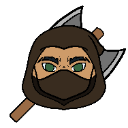 Executioner
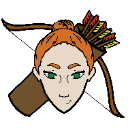 Huntress
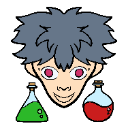 Mad Scientist
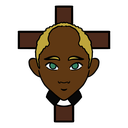 Priest
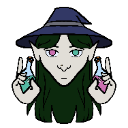 Witch
Witch
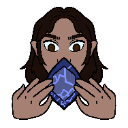 Amulet Crafter Werewolves Revamped - OS13B
 Alcoholic
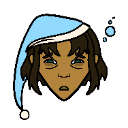 Amnesiac
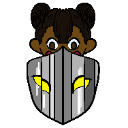 Assistant
 Bartender
 Child
Child
 Citizen
 Coroner
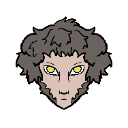 Cursed Civilian
 Devout Villager
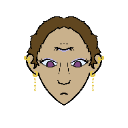 Fortune Apprentice
 Idiot
Idiot
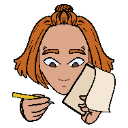 Journalist
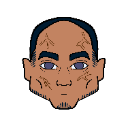 Macho
Macho
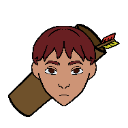 Ranger
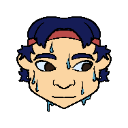 Runner
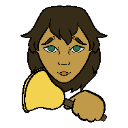 Town Crier
 Trickster Werewolves Revamped - OS13B
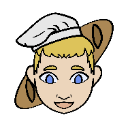 Baker
Baker
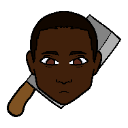 Butcher
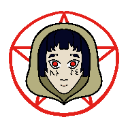 Cult Member
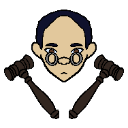 Juror Werewolves Revamped - OS13B
 Aura Teller
 Crowd Seeker
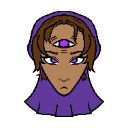 Fortune Teller
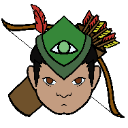 Huntsman
 Innkeeper
 Oracle
Tattletale Werewolves Revamped - OS13B Syntax error. Unknown command
Oracle
Tattletale Werewolves Revamped - OS13B Syntax error. Unknown command wm!
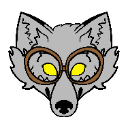 Knowledgeable Wolf
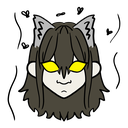 Recluse
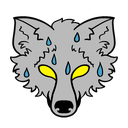 Scared Wolf
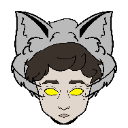 Sneaking Wolf
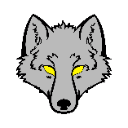 Wolf
Wolf
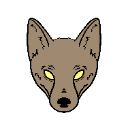 Wolf Cub Werewolves Revamped - OS13B
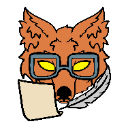 Archivist Fox
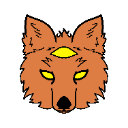 Clairvoyant Fox
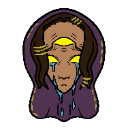 Lone Warlock
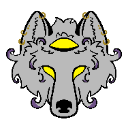 Psychic Wolf
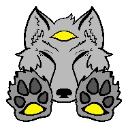 Tracking Wolf
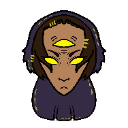 Warlock Werewolves Revamped - OS13B
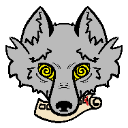 Corrupt Wolf
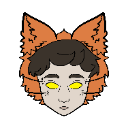 Disguised Fox
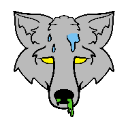 Infecting Wolf
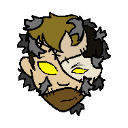 Pack Tanner
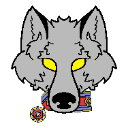 Saboteur Wolf
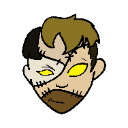 Tanner
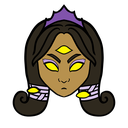 Baroness
Gallant Fox Werewolves Revamped - OS13B
Baroness
Gallant Fox Werewolves Revamped - OS13B 
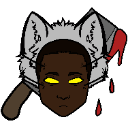 Bloody Butcher
Lesser Coyote
Bloody Butcher
Lesser Coyote
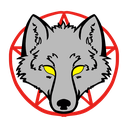 Cultist Wolf (T) Werewolves Revamped - OS13B

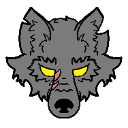 Alpha Wolf
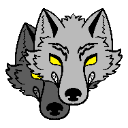 Direwolf
Howling Wolf
Direwolf
Howling Wolf
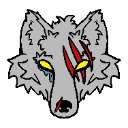 Lone Wolf
Greater Coyote Werewolves Revamped - OS13B
Lone Wolf
Greater Coyote Werewolves Revamped - OS13B 
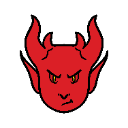 Demon (Hell Team)
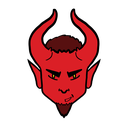 Devil (Hell Team)
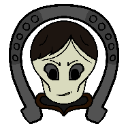 Horseman of Death (Horsemen Team)
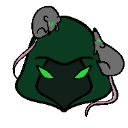 Plague Bearer (Plague Team)
 Pyromancer (Pyro Team)
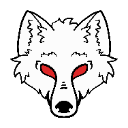 White Werewolf (White Wolves Team)
 Wisp (Pyro Team)
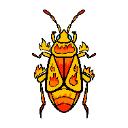 Firebug (Pyro Team)
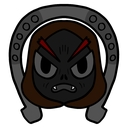 Apocalyptic Horseman (T; Horsemen Team) Werewolves Revamped - OS13B
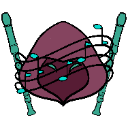 Flute Player (Flute Team)
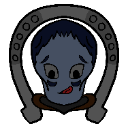 Horseman of Famine (Horsemen Team)
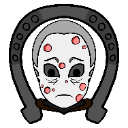 Horseman of Pestilence (Horsemen Team)
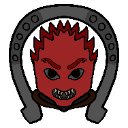 Horseman of War (Horsemen Team)
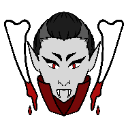 Vampire (Underworld Team) Werewolves Revamped - OS13B
 Flute Apprentice (Flute Team)
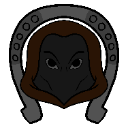 Horseman (Horsemen Team)
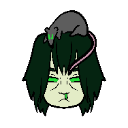 Plague Carrier (Plague Team)
 Demonic Cupid (T; Hell Team)
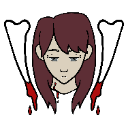 Undead (T; Underworld Team) Werewolves Revamped - OS13B
 Flute Charmer (Flute Team) Werewolves Revamped - OS13B
 sg. Did you mean scared wolf (aka SW)? Werewolves Revamped - OS13B
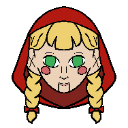 Riding Hood Werewolves Revamped - OS13B
 Angel
Angel
 Chef
Chef
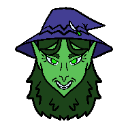 Vicious Hag Werewolves Revamped - OS13B
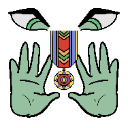 Despot
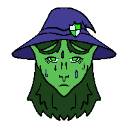 Cautious Hag Werewolves Revamped - OS13B
 Plague Doctor
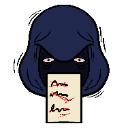 Psychopath
 Detective
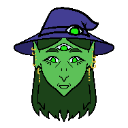 Prophetic Hag Werewolves Revamped - OS13B
 uag. Did you mean hag? Werewolves Revamped - OS13B
 Guardian
 Mayor
Mayor
 Reporter
 Monarch Werewolves Revamped - OS13B
  Werewolves Revamped - OS13B Werewolves Revamped - OS13B
  Werewolves Revamped - OS13B
  Werewolves Revamped - OS13B
  Werewolves Revamped - OS13B
 Unaligned Align (UAA)
 Unaligned Align - Cupid (UAC)
 Unaligned Killing (UAK)
 Unaligned Investigative (UAI)
 Unaligned Power (UAP)
 Unaligned Miscellaneous (UAM)
 Unaligned - Hags (UAH) Werewolves Revamped - OS13B


 WWRess
 is a variant of chess, played on a 5x5 grid. In each game, each of the two sides (white/town & black/wolves) gets 5 pieces. Each piece comes with a movement type (Pawn, King, Knight, Rook or Queen) and an ability. Each team has 17 unique pieces (6 pawns, 4 kings, 3 knights, 3 rooks, 1 queen). The pieces of the teams differ, so the two sides usually have completely different abilities. Look up what pieces there are using
WWRess
WWRess is a variant of chess, played on a 5x5 grid. In each game, each of the two sides (white/town & black/wolves) gets 5 pieces. Each piece comes with a movement type (Pawn, King, Knight, Rook or Queen) and an ability. Each team has 17 unique pieces (6 pawns, 4 kings, 3 knights, 3 rooks, 1 queen). The pieces of the teams differ, so the two sides usually have completely different abilities. Look up what pieces there are using /pieces <team name>.
Each turn consists of two actions: first, using an active ability (if a piece with an active ability is available) and second, moving a piece. The game is won if the enemy cannot make a move (Kings are not part of the win condition in any way).
The only available special move is Pawn Promotion.
Initially, all enemy pieces are hidden. The movement type of enemy pieces will automatically be marked where possible (only a knight can jump so that move makes the piece clearly identifiable as a knight (though not which knight), moving a single step forward does not) and additionally investigative pieces may be used to reveal them. Sometimes this is not fully accurate, as some pieces can change role (e.g. Dog) and some can be disguised (e.g. Sneaking Wolf).
Start a game against the AI with /play, challenge another player with /challenge <name>. Accept or deny a challenge with /accept and /deny. Use /resign to give up.


1️⃣
1️⃣

 ⬛
⬛ 5️⃣
5️⃣ ️
2️⃣⬜5️⃣▶️4️⃣
3️⃣⬜1️⃣️
4️⃣⬜5️⃣
️
2️⃣⬜5️⃣▶️4️⃣
3️⃣⬜1️⃣️
4️⃣⬜5️⃣ ️
5️⃣
️
5️⃣ ⬛
⬛ 1️⃣▶️4️⃣
Archivist Fox: Reveal a piece's type.
1️⃣▶️4️⃣
Archivist Fox: Reveal a piece's type.
 Attacked Scared Wolf: Survived an attack. No ability. Moves one square horizontally/vertically.
Dog: Once, becomes a Wolf Cub or Fox.
Attacked Scared Wolf: Survived an attack. No ability. Moves one square horizontally/vertically.
Dog: Once, becomes a Wolf Cub or Fox.
 Scared Wolf: Survives one attack, but becomes less mobile.
Wolf: No ability. (edited)
Scared Wolf: Survives one attack, but becomes less mobile.
Wolf: No ability. (edited)Server ID: 584765921332297775
Shard ID: 359
Invite link: https://discord.gg/yqCWCk8At5
Main language: en
/help: This!
/bump: Bump this server.
/page: Get a link to the server's DISBOARD page.
/invite [channel]: Set invite to this channel. If [channel] is specified, create an invite for that channel. (Admin only.)
How do I add my server to DISBOARD?
1. Login on DISBOARD website,
2. Go to Dashboard,
3. Click "Add New Server"
Fill out your server info and save it. You will be redirected to Discord's authorization screen. If not, click the "Add Bot" button on the server edit page.
Need help? Join the support server. You cannot use this command while signed up or ingame.

 ✨
✨


 ⬛
⬛